An add-on for Google Sheets
Make a document from every row of your sheet
One template. One file for every row. No copy and paste.
Fillmore is an add-on for Google Sheets. It fills your Doc or Slides template once for each row. It saves each new file in your Drive folder. It can also email each file.
Fillmore is in beta. It comes to the Google Workspace Marketplace soon.
How it works
Three steps. No code, no copy and paste.
Step 1
Make a template
Write a Google Doc or Slides file. Put a tag like
<<Student Name>>where each value goes.Step 2
Open Fillmore in your sheet
Open Extensions, then Fillmore. Pick your template and a folder. Fillmore matches each tag to a column.
Step 3
Press Make files
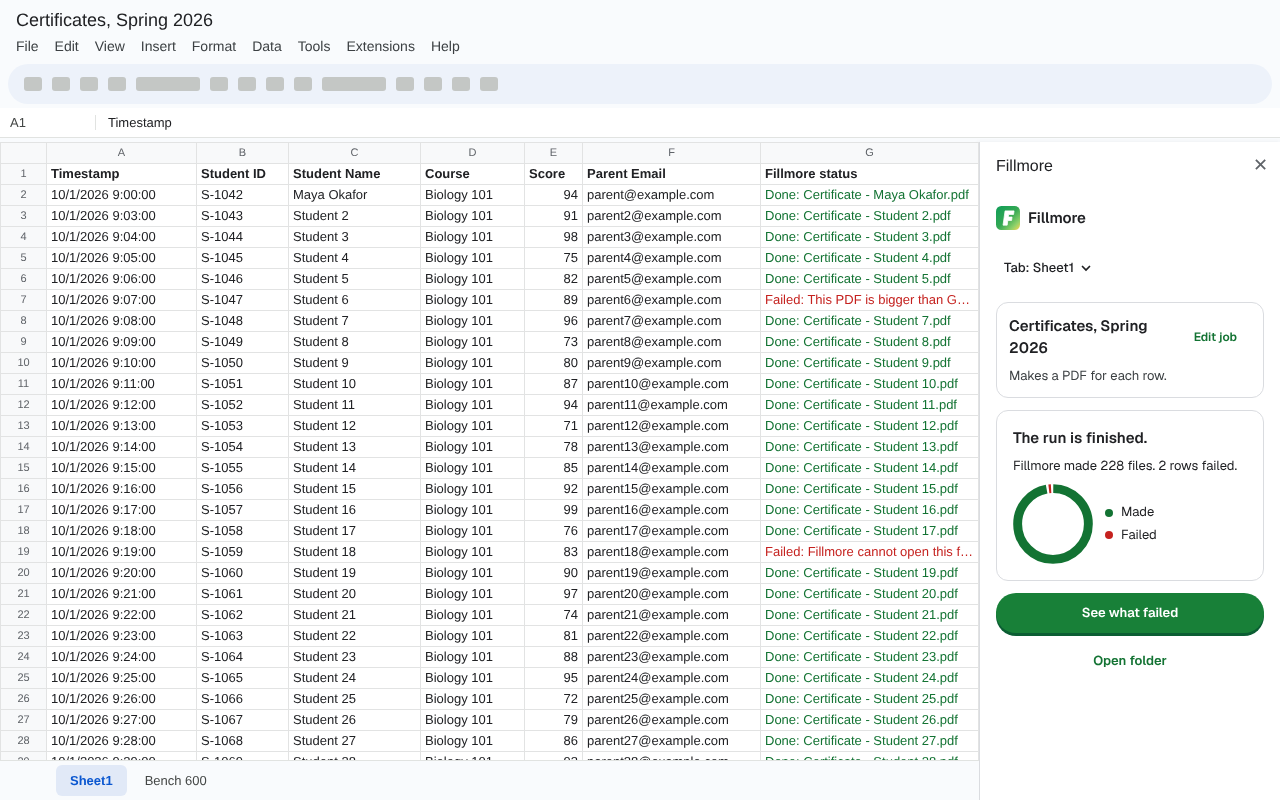
Each row gets its own file in your Drive folder. Fillmore writes each row's status in the sheet.
Why people use it
Fillmore does the careful work for you, row by row.
Every row gets a clear result
Each row ends as done, skipped or failed. Fillmore tells you why.
No file made twice
Fillmore skips rows that are done. You can run a job again safely.
Big jobs keep going
Google stops a run after 6 minutes. Fillmore continues it by itself.
Undo a whole run
Undo moves the files to Drive trash. You can get them back.
A PDF, a copy, or both
Make a PDF, a filled copy of your template, or both at once.
Email each file
Fillmore can send each file to the email address in its row.
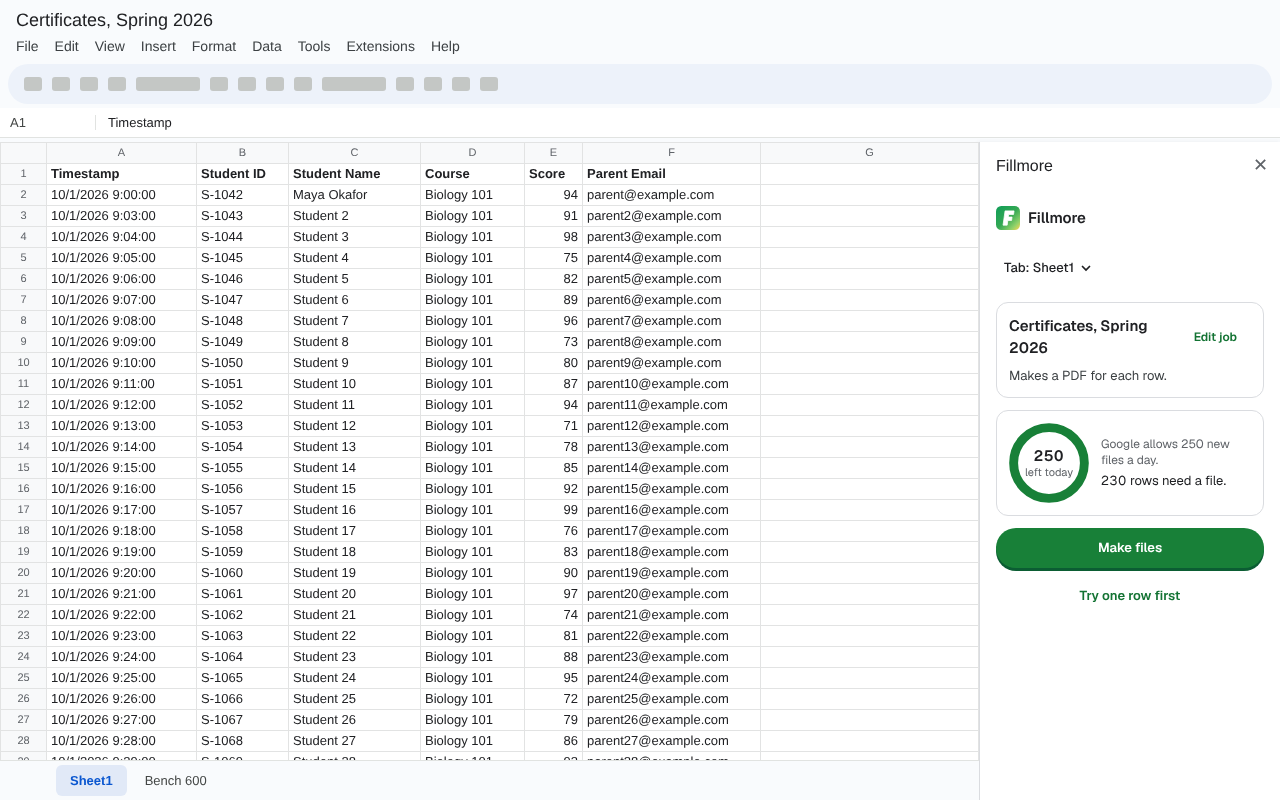
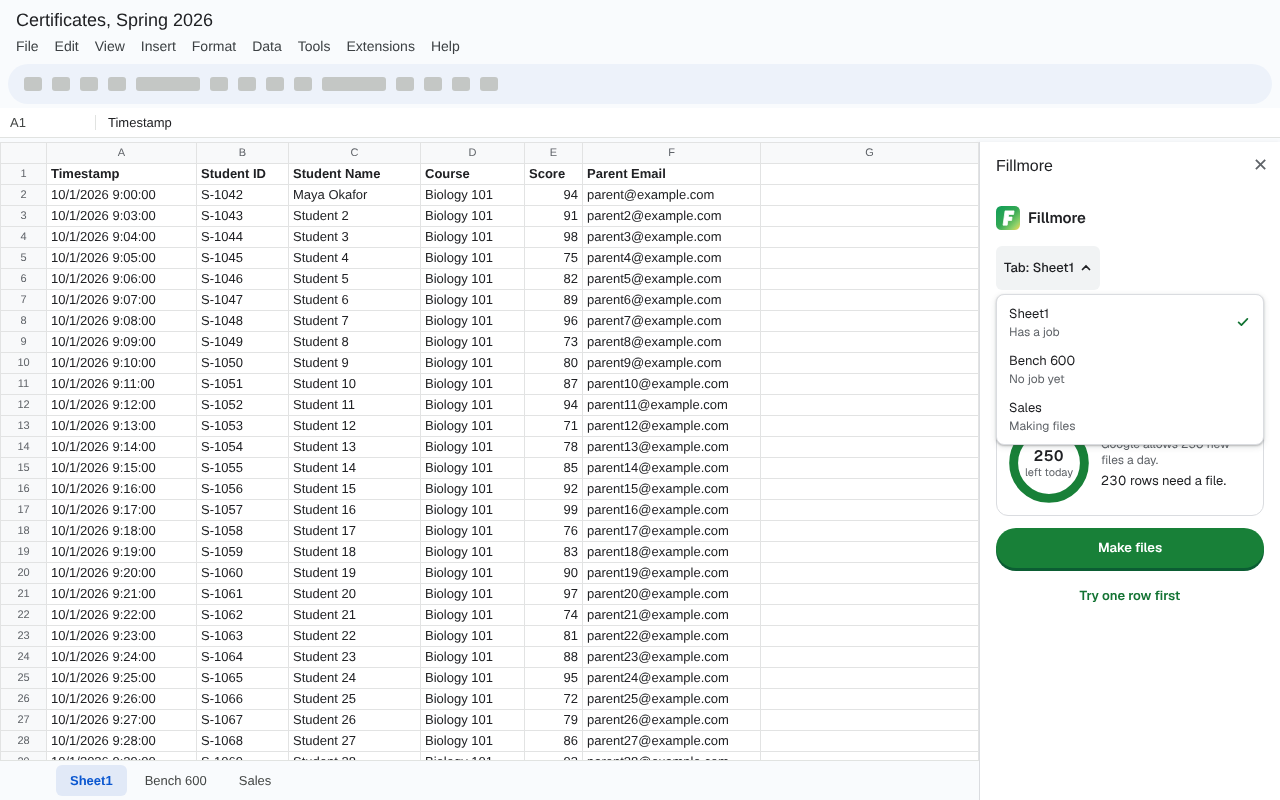
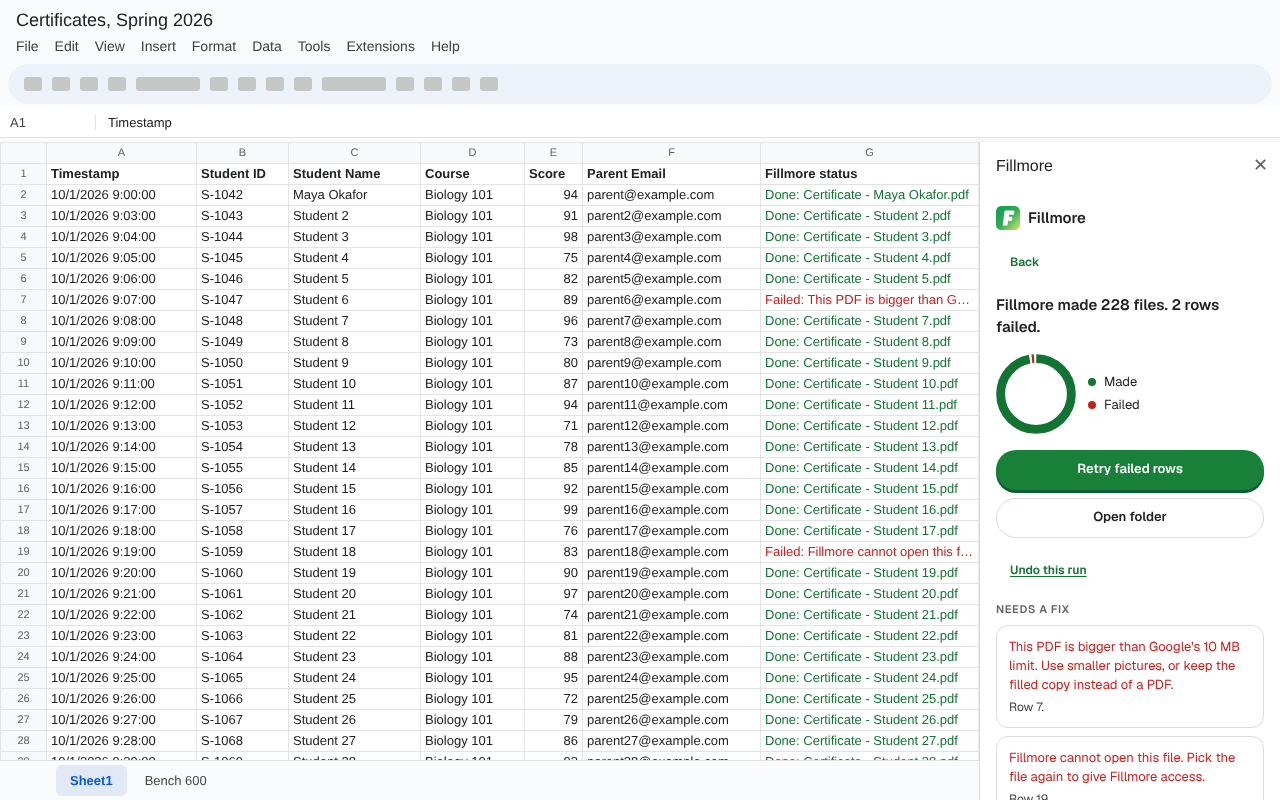
See each screen
Fillmore opens beside your sheet, in the same window.
Your data stays yours
- Your rows, names and files stay in your Google account.
- Fillmore never copies your sheet data to its own server.
- It can open only the sheet you have open and the files you pick.
- We show no ads. We never sell your data. We never use it to train AI.
Read the privacy policy and the terms of service.
What Fillmore asks Google for
Google shows these permissions before you install. Fillmore uses each one for one job:
- The sheet you have open, and only that sheet. Fillmore reads its rows and writes each row's status.
- Only the files you pick, and the files Fillmore makes. It copies your template, saves each file, and can undo a run.
- Send email as you, only when you turn it on. It cannot read your inbox.
- Run by itself, to finish a long run after Google's 6-minute limit.
- Connect to Google's Drive, Docs and Slides services. Fillmore uses them to fill and save each file.
Fillmore also shows its sidebar and the file picker in Sheets. See all 6 permissions in the privacy policy.
Price
Fillmore is free during the beta.
Questions
Do I need to know any code?
No. You type tags like <<Name>> in a normal Doc. Fillmore does the rest.
Does Fillmore copy my sheet?
No. Your rows and files stay in your Google account. Fillmore never copies them to its own server.
What happens when a row fails?
The other rows still get their files. Fillmore writes the reason next to the row. Fix it, then press Retry failed rows.
Can I undo a run?
Yes. Undo moves the files from that run to Drive trash. You can get them back from there.
How many files can I make in a day?
Google sets a daily limit for each account. Fillmore shows how many new files are left today.
How do I remove Fillmore?
In Sheets, open Extensions, then Add-ons, then Manage add-ons. Remove Fillmore there.
Guides
Short how-to guides for common jobs.
Generate invoices from Google Sheets, one PDF per client
Keep your invoices in a Google Sheet, one row each. Fill a Google Docs invoice from each row. Save it as a PDF, and email it to the client.
Google Docs template from a spreadsheet: merge tags that work
Write merge tags in a Google Docs or Slides template. Each tag fills from the right column of your sheet. Try the tag checker.
Google Forms to PDF automatically, one PDF for each answer
Turn each new Google Forms answer into its own PDF, from your own template. Fillmore can also email the PDF to the person who sent the form.
Need help?
See the support page, or write to [email protected].