How to mail merge in Google Sheets
A mail merge takes one template and a list. It makes one copy of the template for each person on the list. Each copy has that person's details.
In Google Sheets, your list is the sheet. Each row is one person, or one order, or one student. Each column is one detail, such as a name or a date. Your template is a Google Doc.
This guide shows how a mail merge works. Then it shows how to do one with Fillmore, step by step.
What you need
- A Google Sheet with a header row. Row 1 holds the column names. Each row under it is one record.
- A Google Doc to use as the template.
- A folder in Google Drive for the new files.
Keep the column names short and clear. "Student Name" is better than "Name of the student (first and last)".
How a mail merge works
The template has tags where each value goes. A tag is a column name inside double angle brackets. For example: <<Student Name>>.
For each row, the merge does 3 things:
- It makes a copy of the template.
- It swaps each tag for the value in that row.
- It saves the copy with its own name.
You can do this by hand for 5 rows. For 50 or 500 rows, it takes hours. People also make mistakes when they copy and paste. A tool does the same steps the same way every time.
Step 1: Make your template
Open a new Google Doc. Write the letter, report or form as usual. Where a value from the sheet goes, type a tag.
Here is a short example:
Dear
<<Parent Name>>,
<<Student Name>>finished<<Course>>with a score of<<Score>>.
Each tag must match a column name in row 1. Fillmore also accepts tags like {{Student Name}}. Use whichever style you already know. The template guide has a tag checker to try.
Step 2: Open Fillmore in your sheet
Open your sheet. Then open Extensions, then Fillmore, then Open Fillmore. The sidebar opens on the right.
Each tab in your sheet can have its own job. Press Set up a job for this tab.
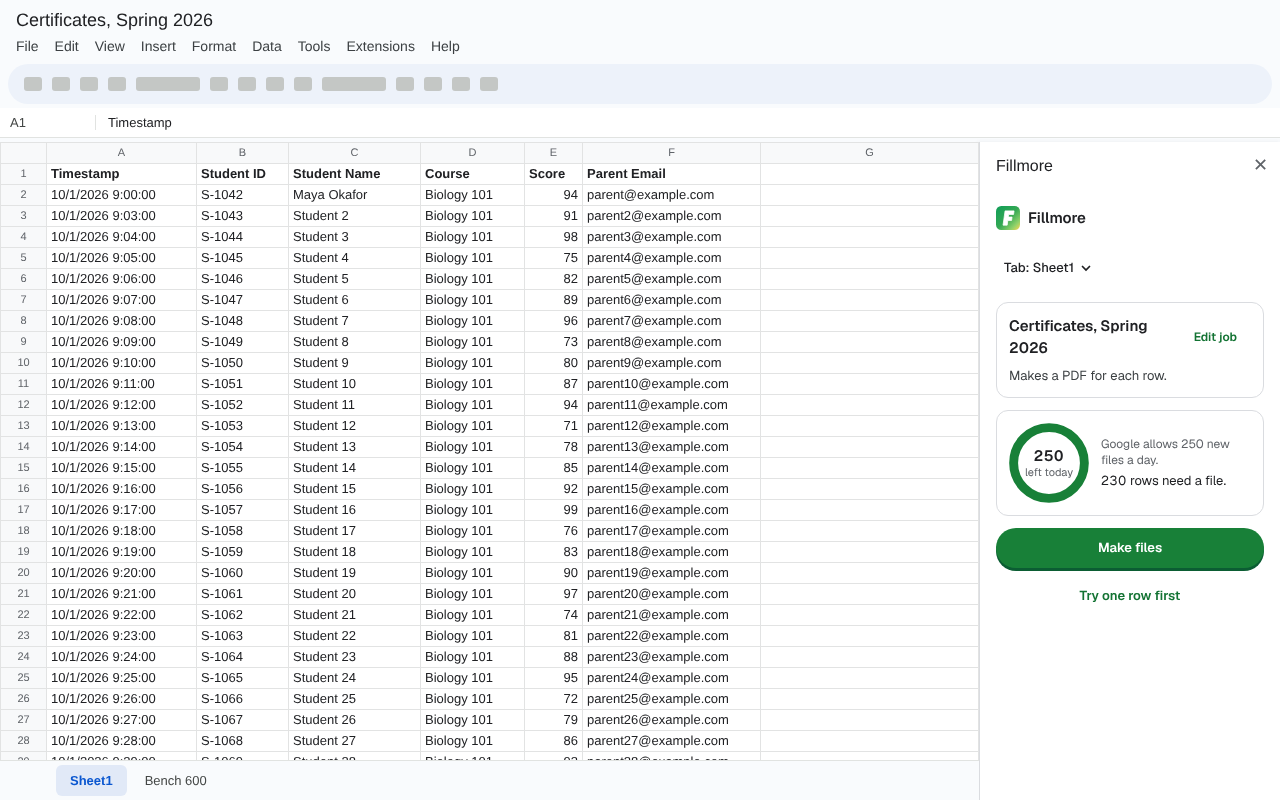
Step 3: Pick your template and folder
Press Choose template. Pick your Google Doc in the window that opens. Fillmore reads the tags in it.
Fillmore matches each tag to a column with the same name. If a tag has no match, pick the column from the list next to it.
Next, press Choose folder. Pick the Drive folder for the new files.
Step 4: Check the file name and the file type
Fillmore names each file from the template name and the first column it fills. You can see an example from row 2.
To change it, open Change file name. You can add any column to the name. Under Each row makes, pick one:
- A PDF
- A filled copy of the template
- A PDF and a filled copy
A filled copy is a normal Google Doc. You can still edit it. A PDF is better to print or send. See how to make a PDF for each row for more.
Press Save job.
Step 5: Try one row, then make all the files
Press Try one row first. Fillmore makes the file for the first row that needs one. Open it and check it.
If it looks right, press Make files. Fillmore makes one file for each row. It writes each row's result in a new column called "Fillmore status".
Each row ends as done, skipped or failed. A failed row says what went wrong and how to fix it. Fix the problem, then press Retry failed rows.
What if the run is big?
Google lets an add-on work for 6 minutes per run. Fillmore then continues the run. While the sidebar is open, it continues straight away. When the sidebar is closed, it continues once an hour. That needs your permission to run in the background.
Fillmore keeps to Google's Apps Script limits. That is 250 new files a day on a free Gmail account. It is 1,500 on Workspace. Docs and Slides each have their own count. Fillmore shows how many are left today. Source: Apps Script quotas, read 16 Oct 2026.
Rows over the limit show Failed, with the reason. After 24 hours, press Retry failed rows.
Can I run it again?
Yes. Fillmore skips rows that are already done. Only new or changed rows get files. So you can add rows and press Make files again. See how only new rows get files.
Made a mistake? Press See results. If rows failed, the button says See what failed instead. Then press Undo this run, and confirm with Move files to trash. The files from that run move to Drive trash. You can get them back from there. Only the latest run of a job can be undone.
Want to try it on your own sheet? Read how to test Fillmore.